How to install BepInEx on Windows and Linux
A guide to setting up BepInEx for Ostranauts on Windows and Linux.
- Filed under
- Guides
- Year
- 2026
- Links
- Steam Guide
A local copy of my Steam guide, archived on September 25, 2026.
Intro
How to install BepInEx and the BepInEx Steam Workshop Mod Loader
Windows and Linux/Steam Deck instructions differ slightly, installation requires one additional step, please make sure you complete the steps for your appropriate device.
If some parts of the guide require clarification please let me know and I will make sure to modify it for clarity.
Please make sure to follow these steps in order for the best result
If you are on Linux, switching to Proton Experimental or the latest version of GE-Proton is recommended.
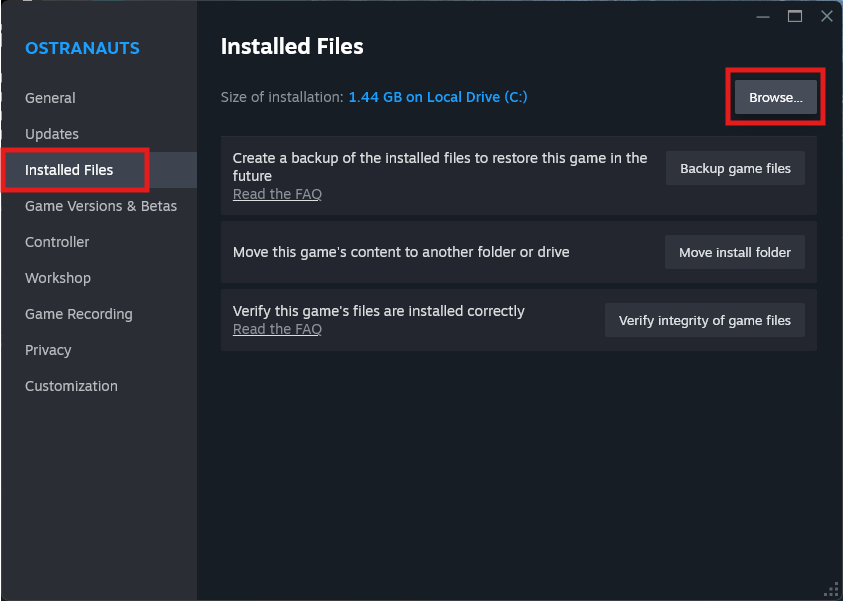
1. Find the Ostranauts game directory
In Steam:
- Right-click Ostranauts.
- Select Properties.
- Select Installed Files.
- Select Browse.
Typical locations are:
Windows:
<SteamLibrary>\steamapps\common\Ostranauts
Linux or Steam Deck:
<SteamLibrary>/steamapps/common/Ostranauts
Your Steam library may be on another drive or an SD card. So I highly recommend using Steam’s Browse button to find it.
2. Download the correct BepInEx archive
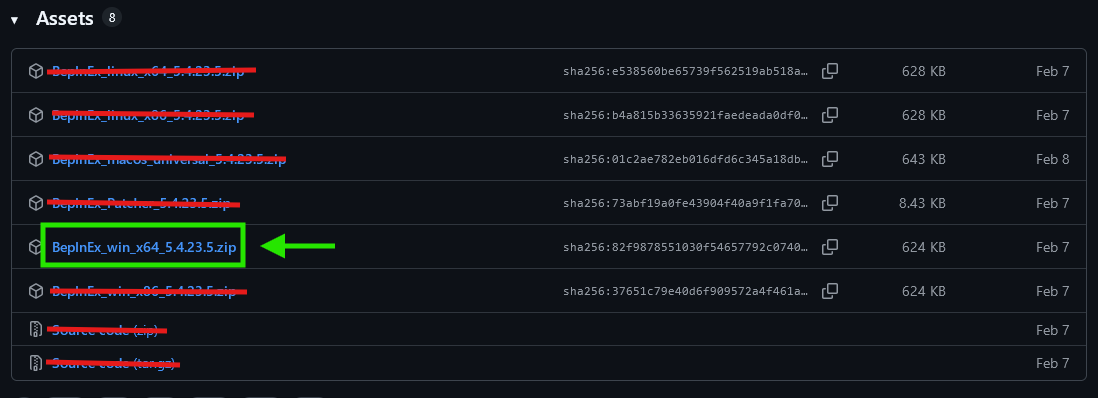
Download https://github.com/BepInEx/BepInEx/releases/download/v5.4.23.5/BepInEx_win_x64_5.4.23.5.zip from the BepInEx 5.4.23.5 release page.
If the direct download link does not work, you can go to the release page and make sure you select the correct zip file.
Ostranauts is a 64-bit Windows game. Proton runs that same Windows build on Linux, so Proton also needs BepInEx_win_x64.
3. Extract BepInEx into the game directory
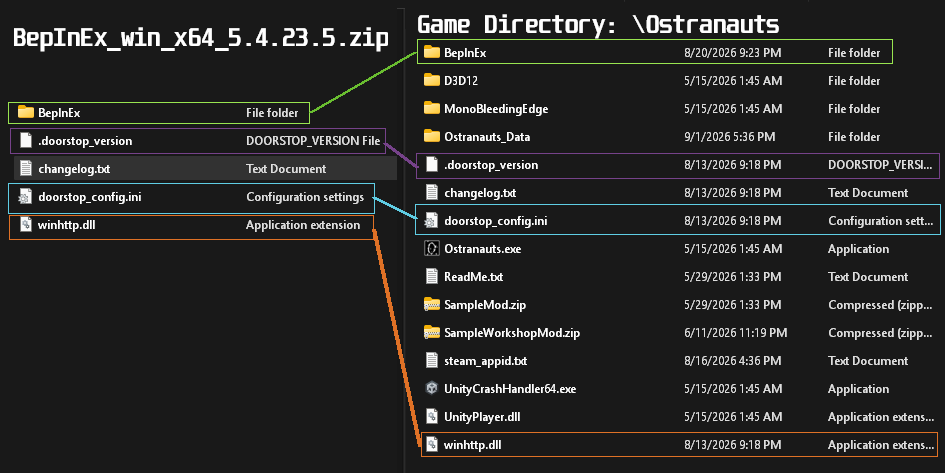
Open the downloaded archive and copy everything inside it directly into the Ostranauts game directory.
Make sure you are extracting the entire zip into the Ostranauts game directory. Not just the BepInEx folder. The changelog is not necessary to transfer, but it doesn’t affect anything.
4. Steam Deck/Linux only: add the Proton DLL override
Skip this step on Windows.
On Steam Deck/Linux:
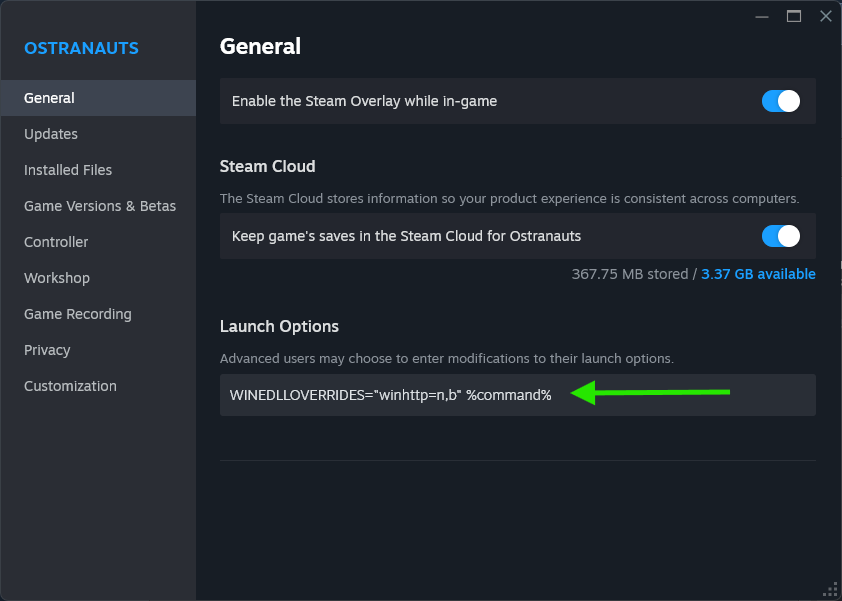
Open Ostranauts -> Properties -> General -> Launch Options and enter exactly:
WINEDLLOVERRIDES="winhttp=n,b" %command%
5. Initialize BepInEx before subscribing to the workshop mod
Start Ostranauts from Steam. Once the main menu appears, close the game.
(Optional but recommended) Confirm that both of these files now exist:
Ostranauts/BepInEx/config/BepInEx.cfg
Ostranauts/BepInEx/LogOutput.log
If these files are missing, BepInEx didn’t load.
If it did load and you see “0 plugins to load” in “LogOutput.log”, that is normal. The bridge and Workshop plugins have not been installed yet (if you haven’t begun subscribing to things).
If BepInEx is not loading, retry the previous steps, you might have missed a file when you transferred the zip contents into your game directory.
6. Subscribe to the Workshop BepInEx Modloader
Subscribe to the BepInEx Mod Loader Workshop item, then wait for Steam to finish downloading it.
Its files will be downloaded to:
Windows:
<SteamLibrary>\steamapps\workshop\content\1022980\3741030124

Linux or Steam Deck:
<SteamLibrary>/steamapps/workshop/content/1022980/3741030124
7. Install the Workshop bridge patcher
Copy the WorkshopBepInExBridge.Preloader.dll file located here:
<SteamLibrary>/steamapps/workshop/content/1022980/3741030124/BepInEx/patchers/OstranautsWorkshopBepInExBridge.Preloader.dll
to the patchers folder that is contained within the BepInEx folder you just transferred to your Ostranauts game directory:
<SteamLibrary>/steamapps/common/Ostranauts/BepInEx/patchers/OstranautsWorkshopBepInExBridge.Preloader.dll
Windows uses backslashes in these paths, but the folder names are otherwise identical.
Copy the DLL itself. Do not place a second “patchers” folder inside the existing “patchers” folder.
Should look something like this:
Ostranauts/
|-- BepInEx/
|   |-- config/
|   |-- core/
|   |-- patchers/
|   |   `-- OstranautsWorkshopBepInExBridge.Preloader.dll
|   `-- plugins/
|   `-- LogOutput.log
|-- doorstop_config.ini
|-- Ostranauts.exe
`-- winhttp.dll
8. Subscribe to and enable BepInEx Workshop mods
- Subscribe to the Workshop mods you want that require bepinex and wait for Steam to download them.
- Start Ostranauts and open its mod menu.
- Make sure each Workshop mod is after “core”.
You are now set up to install workshop mods that require the bepinex workshop modloader.
(Optional) Gravy’s BepInEx Configuration Manager is a great way to tweak mods to your liking without having to exit the game.
You can find it here: https://steamcommunity.com/sharedfiles/filedetails/?id=3745492729
Once installed, you’ll see a button with the letter C at the top left corner of your screen next to your console button. Pressing it will open the following window
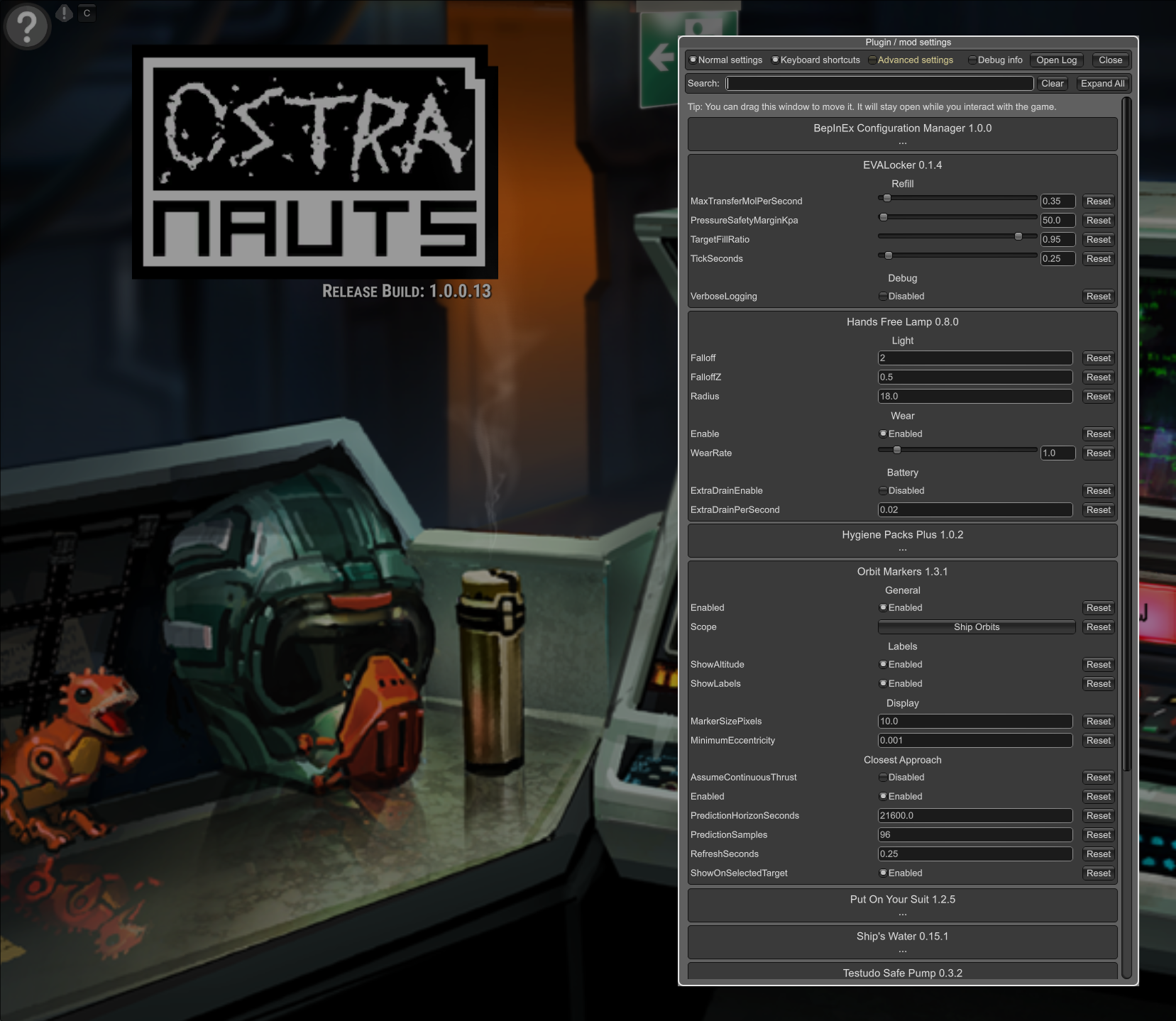
You can also press F1 to bring up the configuration menu at any time.
If you would like to rebind this key, you can do so through the configuration menu itself!
Things to note:
If you use non-workshop mods you will have to manage the loading_order.json yourself. The workshop bepinex mod loader will handle steam workshop mods for you, not external code mods.
I highly recommend Ostrasort. It will make your life easier when it comes to managing your mod sorting, and can automatically fix sorting issues for you.
If you ran into any problems and/or found solutions to problems you ran into please feel free to share so I can include them in a Troubleshooting or FAQ section to make modding easier for others.
Troubleshooting
Any problems that people run into and that are solved will be placed here to aid those with troubleshooting if anyone runs into the same problem.
The game loads after doing everything, but mods I am subscribing to are not showing up in-game
Linux Only Step: Try switching your Proton version to Proton Experimental and relaunch the game. Some default proton versions might have issues loading/reading windows directories that the workshop bridge relies on.
If this does not immediately work, then lets make sure that the workshop bridge is being preloaded.
In the LogOutput.log under Ostranauts/BepInEx you should see the following if it is being loaded (they do not have to occur immediately after the other but will usually follow in this order):
[Info   :   BepInEx] Loaded 1 patcher method from [OstranautsWorkshopBepInExBridge.Preloader 1.0.0.0]
...
[Info   :   Console] [Ostranauts Workshop BepInEx Bridge Preloader] Using loading order: <drive>\Steam\steamapps\common\Ostranauts\Ostranauts_Data\Mods\loading_order.json
...
[Info   :   Console] [Ostranauts Workshop BepInEx Bridge Preloader] scan complete. Mode=loading_order, items=0, copied=0, skipped=0, removed=0.
.
If you are not seeing any of these messages, your BepInEx workshop bridge is not being patched into the game when you are launching it. Retry from Step 7, and make sure that you copied the correct file to the proper directory.
If you are seeing all 3 of these, first I would suggest going to the directory where you’ll find the loading_order.json (easiest method is to click the button within the mod menu)
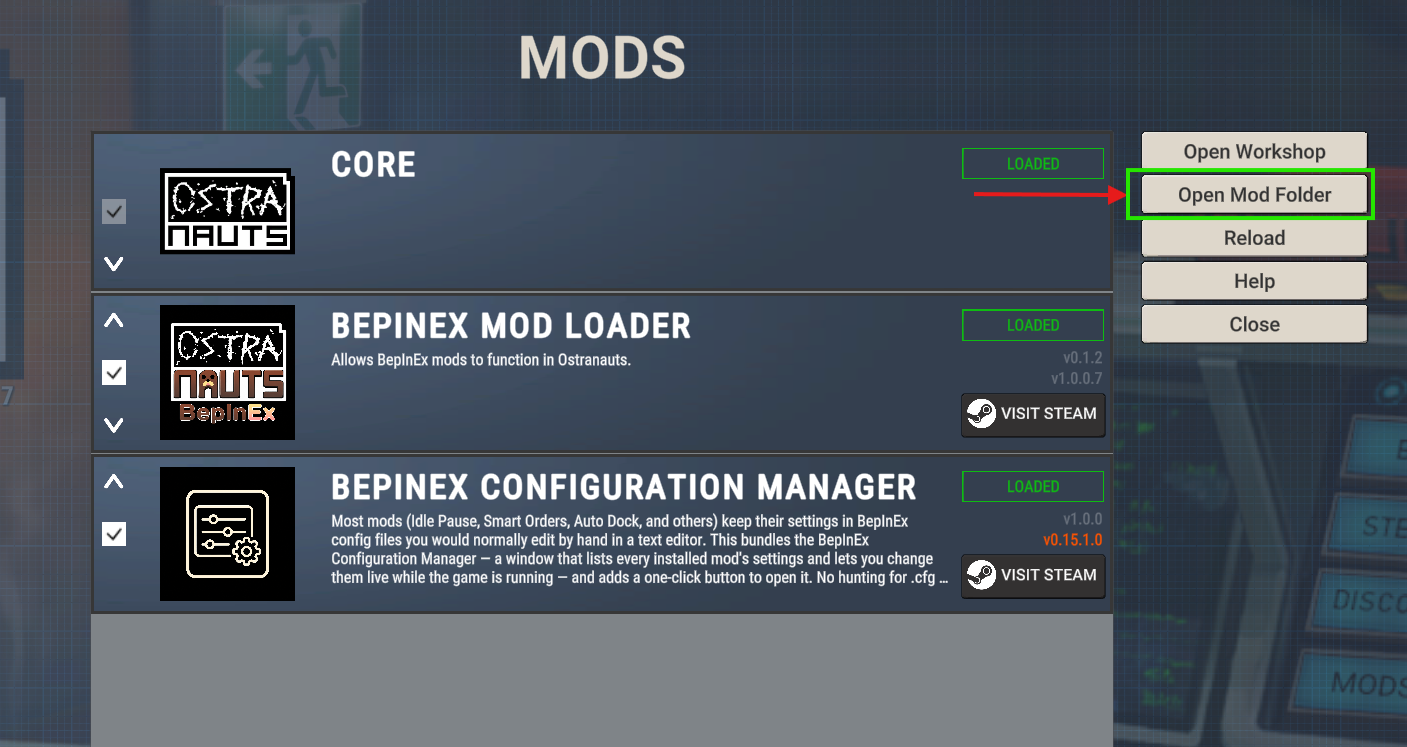
Either Windows or Linux
Try the following:
- Delete the loading_order.json
- Launch the game, and exit once it reaches the main menu.
- Resubscribe to a workshop item, and try launching the game once it is done downloading.
This should force the game to regenerate the loading_order.json and rescan for workshop mods. The first time you launch the game you might see the mods show up as pending, this is usually a good sign that the mods have been located and will be written into the loading_order.json for the next launch to load them.
What should loading_order.json look like anyway?
It will vary based on your workshop directory and what mods are installed, but ideally it should be formatted like this:
[
  {
    "strName" : "Mod Loading Order",
    "aLoadOrder" : [
      "core",
      "C:\\Program Files (x86)\\Steam\\steamapps\\workshop\\content\\1022980\\3741030124",
      "C:\\Program Files (x86)\\Steam\\steamapps\\workshop\\content\\1022980\\3745492729"
    ],
    "CORE_MOD_NAME" : "core"
  }
]
Do not simply copy this into your loading_order file unless you have the exact workshop folder location. Verify the workshop folder location first.
For this example, it will load the workshop bridge (from the 3741030124 folder), and the configurator mod (from the 3745492729 folder), and a proper load will look like this on the console:
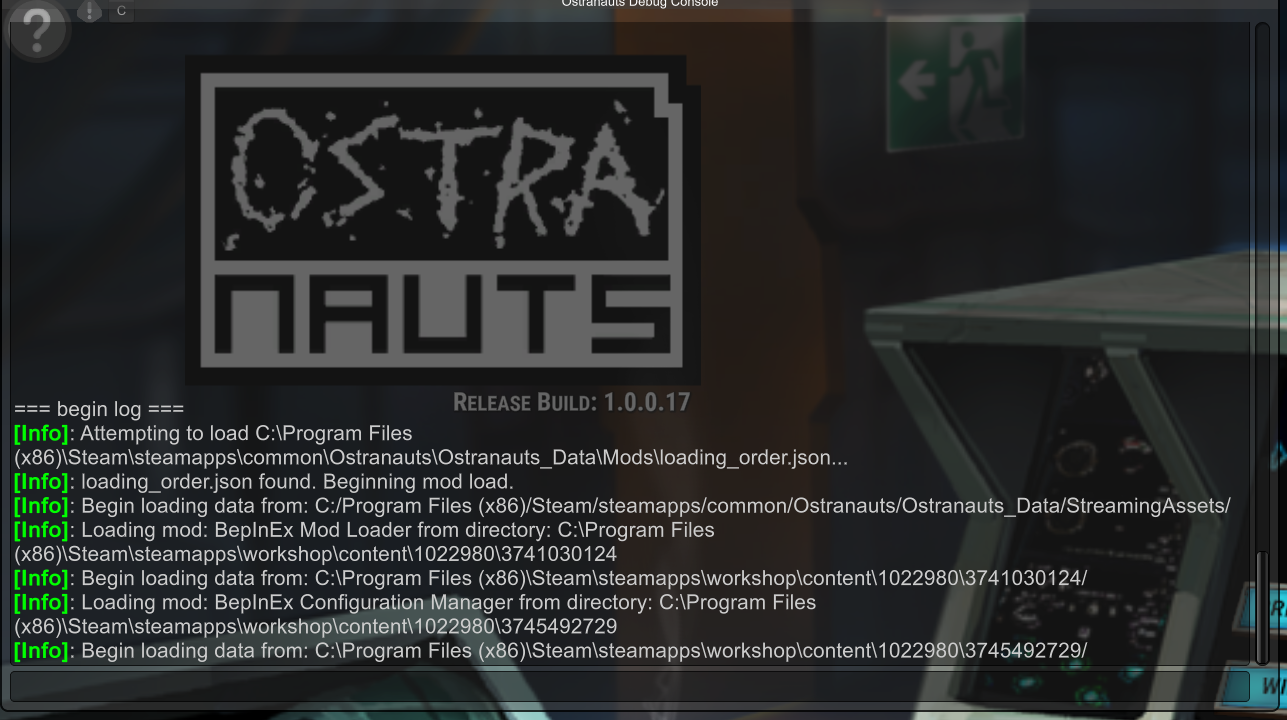
Wait, what if my game is installed on a different drive from where the workshop directories lead to?
As long as the files are present within the referenced directory, it does not matter if it is on a different drive :)
My game works when I load bepinex but starts crashing when I load the workshop bepinex modloader
If the mod isn’t working, you may have installed an older version of the game. Try deleting C:\Users\...\AppData\LocalLow\Blue Bottle Games, then reinstall BepInEx
(many thanks to @MattZhang for sharing this fix)
It still doesn’t work On certain Linux distros and Windows installations, the Bepinex Workshop Mod Loader will crash when it starts. You might be having issues with the SelfUpdate feature, thankfully you can disable it by doing the following:
Open your game directory, and create a file here: Ostranauts/BepInEx/config/ named: com.ostranauts.workshop.bepinexbridge.cfg
Copy+Paste this inside of that cfg file.
[Sync]
SelfUpdate = false
Save and close and try relaunching your game.
What does this mean for me if I disabled SelfUpdate? For now, if there is an update to the workshop bridge you’ll have to repeat Step 7 of this guide.
I can’t even see the debug console and/or there is no text inside of it.
On Linux at least, some have reported issues with the console either not appearing or displaying text.
If this is happening to you, reports indicate that switching to Proton Experimental fixes this.
I need more help/My issue is not listed
Leave a comment with your issue and I’ll try to help and update the guide with some troubleshooting tips!
If you need immediate assistance I highly recommend going to the official BlueBottleGames discord channel and asking for assistance, there are a lot of kind and knowledgeable individuals that might be able to assist. I am also active there, so feel free to ping me as @Jimlarck and I’ll do my best to help :)
(Optional) Getting Ostrasort on the Steam Deck
I tested this on my Steam Deck with:
- SteamOS version 3.8.16
- Proton Experimental
- Ostranauts 1.0.0.11
- Ostrasort 0.25.1
Grab the Ostrasort exe setup from the GitHub releases page. (There is no longer a portable zip, so I am writing this using the setup.exe with hopes of it being relevant for longer.)
Initial Setup
- Go to Desktop Mode on your Steam Deck.
- Open Steam and click the “+ Add a Game” button in the bottom left corner of the desktop client.
- Select the “Add a Non-Steam Game” option.
- Find the setup exe you just downloaded and select it.
- Open Properties for the Ostrasort setup exe shortcut (feel free to rename it to just Ostrasort).
- Navigate to the Compatibility menu and force it to use Proton Experimental.
- Run Ostrasort. It will install itself and then open the program. For me, it autodetected the game’s directory and applied some suggested fixes. At this point, it should work.
Fixing the Shortcut
If you run Ostrasort through the shortcut a second time, it will understandably get confused since it is already installed. It will just offer to repair it or open the file directory. To fix this:
- Open Dolphin (File Manager) and navigate to: /home/deck/.local/share/Steam/steamapps/compatdata/
- Sort by most recently modified. You are looking for the most recent folder named with a bunch of numbers. It will probably be much larger than the others and stand out. In my case, it was named 4244767611, but it’ll probably be different for you.
- Once you find that numbered folder, open it and navigate to: /pfx/drive_c/users/steamuser/AppData/Local/Ostrasort/
- Select Ostrasort.exe and copy its location.
- Go back to the Ostrasort shortcut you created on Steam.
- Open its Properties and paste the copied location of Ostrasort.exe into the Target box.
Ideally, you should be done. Just do not launch Ostranauts from the Ostrasort Launch button. Close Ostrasort before you launch Ostranauts.
(I might make a proper guide rather than just a section here. The tricky part is that it is not officially supported on Linux, so future Ostrasort updates might alter the installation process or break Proton compatibility.)